


Feeling like this?
-
Your Cricut is just sitting there
-
You’ve watched tutorials but still stuck
-
You start projects but don’t finish
“You’re not the problem 💌”

Create Projects

Earn Badges

Build your Handbook
A fun, structured way to learn by doing
How it works:


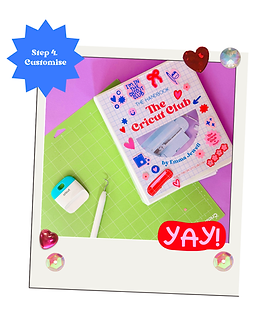

Finally master your Cricut machine!
Grab your Handbook
Work through fun, easy to follow guides. No stress, no confusion.
Complete projects and unlock badges
Personalise your handbook and add badges as you level up!


What's Included?
For just £14.99 (was £18.99!), you’ll get immediate access to a beautifully designed digital printable handbook packed with:
✨ 8 Material Badges
Learn to confidently craft with:
-
Iron-on
-
Vinyl
-
Infusible Ink
-
And more!
💻8 Design Space Badges
From slicing and welding to layers and text, become a Design Space whiz, one badge at a time.
✂️35+ Cricut Projects
Hands-on projects that reinforce your new skills while making gorgeous, useful stuff.
💖 Freebies Galore
We’re talking:
-
SVG files
-
Printable sticker sheets
...and surprises along the way!
✅ Badge Add-Ons
New badges = new skills = new fun!
Keep adding to your handbook as we release new modules.
Collect your badges!

You can earn over 16 badges in The Cricut Club Handbook.
Here's what they cover and what skills you'll learn...

Machine Caretaker
Earning this badge will teach you:
-
How to care for and clean your machine
-
How to store your machine
-
Your way around your machine and what everything does

Mat Caretaker
Earning this badge will teach you:
-
How to care for and clean your mats
-
The difference between mat colours
-
How to choose the correct mat for your material
-
How to store and elongate the life of your mat

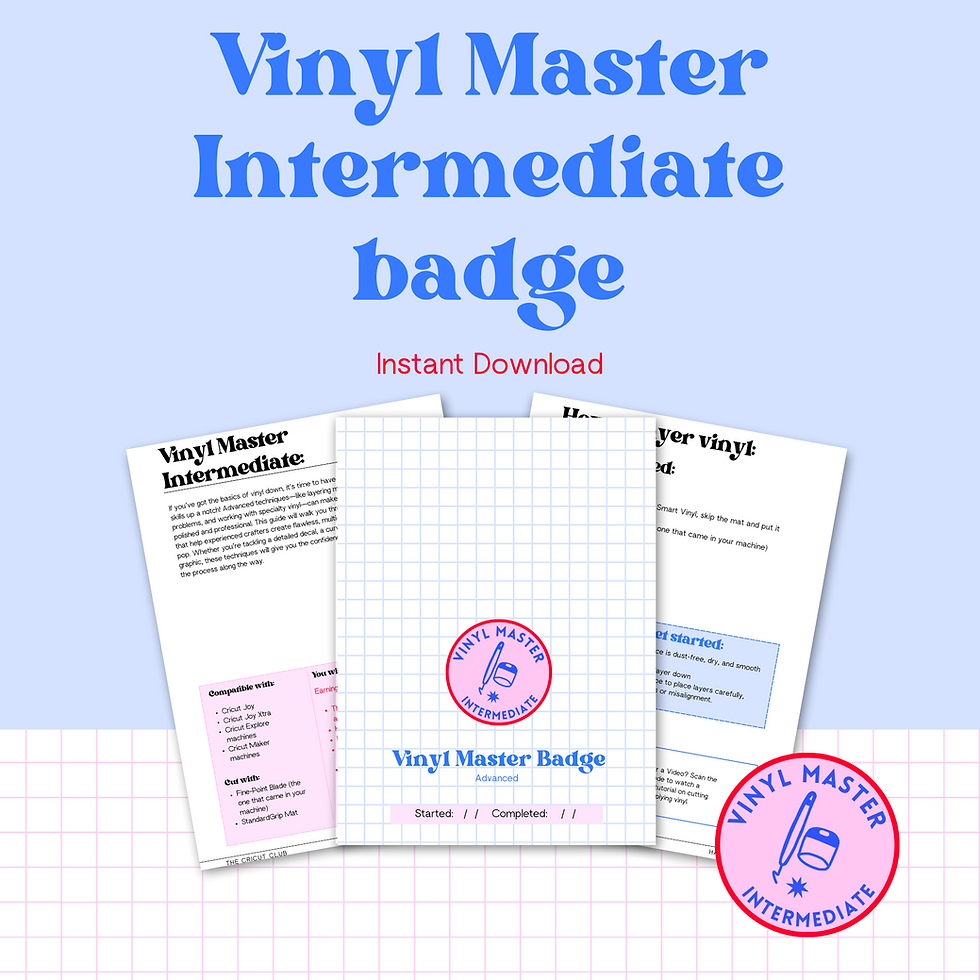
Vinyl Master Beginner
Earning this badge will teach you:
-
The difference between removable and permanent vinyl
-
How to cut vinyl
-
How to weed vinyl
-
How to reverse weed intricate vinyl cuts
-
How to apply vinyl using transfer tape

Iron-on Boss beginner
Earning this badge will teach you:
-
The different types of iron-on
-
How to Mirror designs
-
How to cut iron-on
-
How to apply iron-on with a home iron
-
How to apply iron-on with a heat press
-
How to weed iron-on
-
The difference between hot and cold peel iron-on.

Infusible Ink Star
Earning this badge will teach you:
-
Materials compatible with Infusible Ink
-
Why you should only use a heat press
-
How to setup an Infusible Ink project to be pressed
-
How to use Infusible Ink pens
-
How to use Infusible Ink Sheets
-
How to weed Infusible Ink
-
How to avoid ghosting

Design Space Queen Level Two
Earning this badge will teach you:
-
Where the Canvas and Combine Tools are
-
What the Canvas tools are and how to use them
-
What the Combine Tools are and how to use them

Cardstock
Earning this badge will teach you:
-
The importance of material settings for paper/card
-
What is GSM?
-
What type of glue to use on your project
-
How to cut card
-
How to score with the Scoring Stylus
-
How to score with the Scoring Wheels
-
How to add score lines in Design Space

Print Then Cut Expert
Earning this badge will teach you:
-
What printable materials are compatible
-
What type of printer you need
-
How to Flatten your design
-
The types of cut you can use
-
What is bleed and how to use it
-
How to troubleshoot
-
How to calibrate
-
How to set up a Print Then Cut design in Design Space
-
How to cut your printed project

Design Space Queen Level Three
Earning this badge will teach you:
-
What an Image is and how to add it to a project
-
What the Angel Policy is
-
How to navigate the Image Library
-
How to use Image Search filters
-
How to use the Shapes Library
-
How to upload your own images
-
What a Contributing Artist is

Pen Superstar
Earning this badge will teach you:
-
What types of pen you can use in the machine
-
What materials are compatible with pens
-
How to install pens in Explore/Maker machines
-
How to install pens into Joy/Joy Xtra
-
How to add draw lines in Design Space
-
How to use pens

Design Space Queen Level One
Earning this badge will teach you:
-
What the four main screens in Design Space are
-
How to create a new project
-
What’s on the Canvas and how to use it
-
How to use Operation/Linetype
-
How colour works in Design Space
-
How to use the Align tool
-
What the Layers panel is
-
How to undo, delete and hide
-
How to save
-
How to make a simple project

Design Space Queen Level Four
Earning this badge will teach you:
-
How to add text to the Canvas
-
What’s in the text toolbar and how to use it
-
How to change fonts
-
How to filter and favourite fonts
-
How to change text to writing, for pens

Design Space Queen Level Five
Earning this badge will teach you:
-
What the Mat Preview screen does and how to navigate it
-
How to move elements on the mat
-
How to move elements to other mats
-
How mats are ordered
-
How to mirror
-
What the Make screen is and how to navigate it
-
How to choose the correct material setting

Design Space Queen Level Six
Earning this badge will teach you:
-
What projects are in Design Space
-
How to use Projects
-
How to navigate the Project Library
-
How to search for Projects
-
How to navigate My Stuff
-
What My Profile is
-
How to share a Project

Design Space Queen Level Seven
Earning this badge will teach you:
-
What the advanced canvas tools are and where to find them
-
How to use Offset
-
How to use Contour
-
How to use Templates
-
How to use Monogram Maker
-
How to use Pattern Fill
-
What Colour Sync is and how to use it
-
How to use Guides

Design Space Queen Level Eight
Earning this badge will teach you:
-
What kerning is and why it’s important in Design Space
-
How to use the Warp tool
-
How to curve text
-
How to Ungroup to Letters
-
How to use your own fonts in Design Space
*Design Space Level 8 Is included in the digital version but is a free printable in the physical version (Sorry it wouldn't fit!)


Machine Champion Badges
You recieve these badges just by owning a machine!
Then level up...




"The Cricut Club Handbook is a super fun, nostalgic must-have manual for Cricut users. It is jam-packed with information, tips and inspiration for your first project and beyond. I love how the step by step projects provide bitesize learning - which is great for achieving your crafty goals and earning those badges!"
Hollie T

You sit down to craft and actually feel excited.
You know what to make.
You finish your projects.
You start collecting badges.
Your handbook becomes something you’re proud of.
Imagine this...


